O3DE Dev Tools - VSCode Extension
O3DE Development Tools is a VSCode extension built for daily O3DE programming, and a powerful companion to Opal’s project management. It guides your workspace and toolchain setup, builds and runs your project in one click, gives you C++ and Lua IntelliSense, and debugs Lua against a running O3DE Editor. The Class Creation Wizard scaffolds new components, and opt-in LLM connections let an assistant such as Claude build and run your project for you.
Get it now
Available for:
- Windows and Linux.
The dashboard
Everything runs from one O3DE Development Tools panel in the activity bar. It opens on a Dashboard: Build and Run up top, a row of utilities beneath, then collapsible C++, Lua, IntelliSense, and Setup & Onboarding sections.
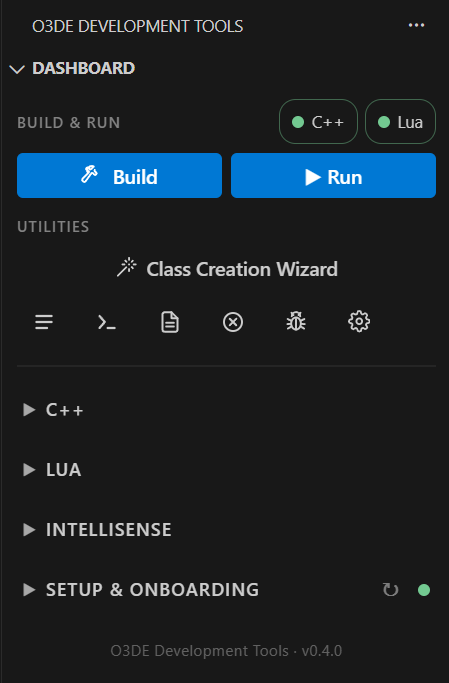
- Build builds the selected targets with CMake. Progress shows in the panel, full output streams to the O3DE Build Output channel, and the button becomes Stop Build while a build runs. Hotkey:
Ctrl+Alt+B. - Run launches the selected run target, the Editor by default. Press it again, or
Ctrl+Alt+R, and it force-quits the app and its child processes, Asset Processor included. Run is unavailable during a build, when binaries are half-written. - The C++ and Lua pills show whether each track is ready.
- Class Creation Wizard opens O3DE’s own component and EBus scaffolding tool, wired to your active engine and project.
- The icon row opens, left to right: the extension’s output channel, a developer terminal,
Editor.log,Error.log, Run in Debug, and the extension’s settings.
Onboarding
Setup & Onboarding checks everything the tools depend on and offers a one-click fix for what’s missing: install, enable, or configure. A status light and re-scan button sit in the header, beside readiness pills for Project, C++, and Lua, and a count of optionals met.
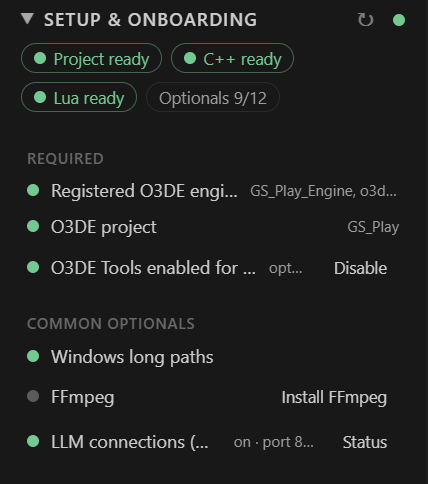
- Required: a registered O3DE engine, an O3DE project, and O3DE Tools enabled for this project. The extension is opt-in per project. It asks once when you open an O3DE project, and a non-O3DE workspace stays fully dormant.
- Common optionals: Windows long paths, FFmpeg, and LLM connections.
- LLM connections are off by default and set per project. When on, a local MCP endpoint, bound to
127.0.0.1, lets an assistant such as Claude build, run, read structured build results, and read or change build configuration.
Choose C++ setup or Lua setup to see that track’s checks.
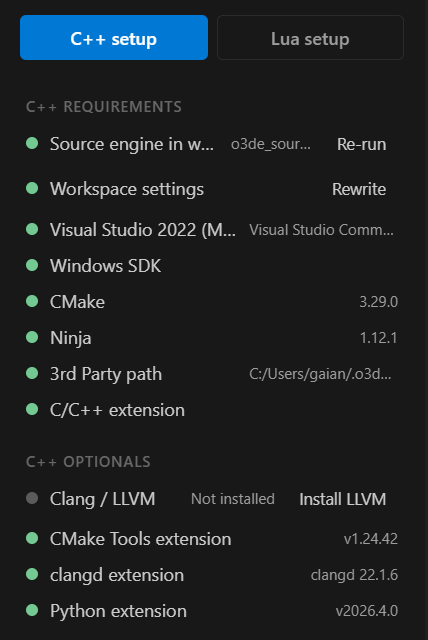
C++ requirements
- Source engine in workspace and Workspace settings run the guided workspace setup: one multi-root workspace holding your project, the engine source, and gems. It generates
.vscodesettings, alaunch.json(Editor, GameLauncher, Attach, Class Creation Wizard), and O3DE code snippets. Re-run and Rewrite redo them. - The toolchain for your platform: Visual Studio 2022, Windows SDK, CMake, and Ninja on Windows. Clang or GCC, CMake, and Ninja on Linux.
- The 3rd Party path and the C/C++ extension.
C++ optionals: Clang / LLVM, CMake Tools, clangd, and Python. An optional item that’s absent reads Not installed on a neutral dot, never a red fault.
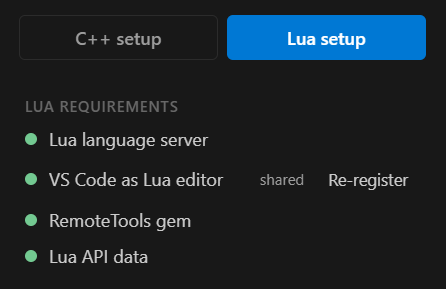
Lua requirements
- Lua language server (
sumneko.lua), which provides completion and hovers. - VS Code as Lua editor, so O3DE’s Open Lua Editor opens scripts here. Re-register repeats the one-time registration.
- The RemoteTools gem, which the debugger connects through.
- Lua API data, the dump of O3DE’s reflected scripting API that IntelliSense and the palette read.
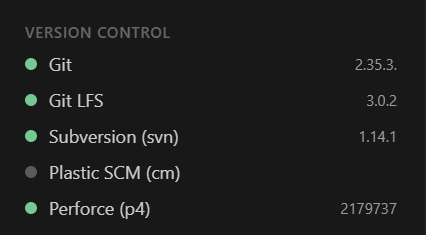
C++
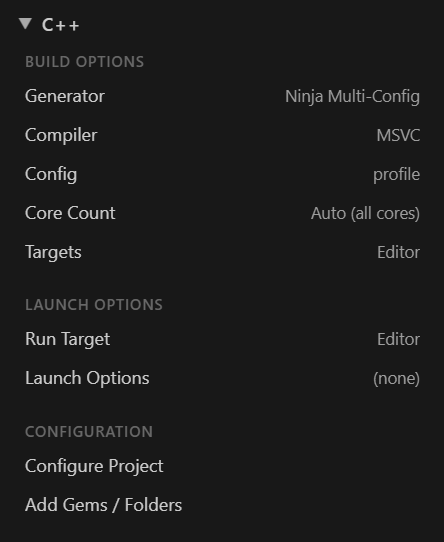
- Build Options: Generator (for example Ninja Multi-Config), Compiler (MSVC or Clang on Windows, Clang or GCC on Linux), Config, Core Count (Auto uses every core), and the Targets to build.
- Launch Options: the Run Target and any launch arguments. The picker offers every executable the project can produce: Editor and GameLauncher first, then other executable CMake targets and tools already built, plus Custom executable… for anything else.
- Configure Project runs the CMake configure, and becomes Stop Configure while it runs.
- Add Gems / Folders adds them to the live workspace, with no reconfigure and no reload.
Run in Debug, the bug icon, launches the selected target under VS Code’s C++ debugger, with the launch configuration generated for you. The C/C++ extension provides that debugger even when clangd provides IntelliSense.
The Advanced view, below the Lua Palette, manages extra CMake cache variables (-D flags) passed to Configure: toggles for LY_RENDERDOC_ENABLED and CMAKE_OBJECT_PATH_MAX, plus any custom flag. Flags are stored per project, and Apply (Reconfigure) pushes them into the CMake cache.
Lua
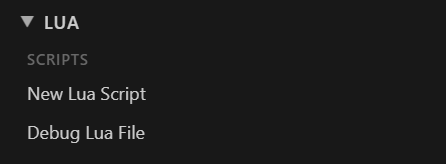
- New Lua Script opens a new, unsaved script from a template. Save it inside your project so the Asset Processor compiles it.
- Debug Lua File starts the debugger for the open script. Start your game, in Editor Game Mode or the GameLauncher, and it connects automatically.
The debugger is a native Debug Adapter for O3DE’s RemoteTools protocol, with no companion gem: breakpoints, stepping, call stack, locals, watch, and edit-value. It needs a non-Release Editor or Launcher build with the RemoteTools gem enabled, which O3DE’s standard project templates do by default. It is localhost only, one target at a time.
Run O3DE: Register VS Code as Lua Editor once and restart the Editor. After that, the Editor’s Tools ▸ Lua Editor and a Script component’s Edit button open scripts in VS Code.
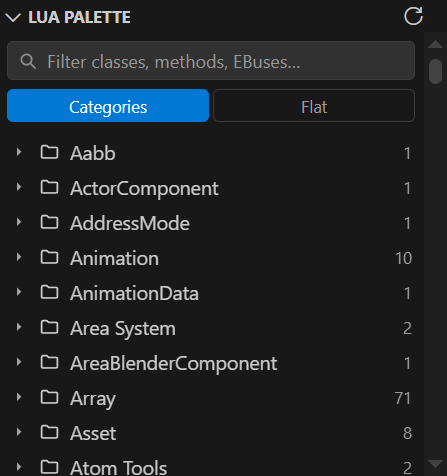
The Lua Palette view in the O3DE activity bar is a searchable browser for the engine’s reflected scripting API, the VS Code counterpart to the Lua IDE’s Class Reference panel.
- Categories groups symbols by Script Canvas category. Flat lists Classes, EBuses, and Globals.
- Filter as you type. Click a symbol to insert a call snippet at the cursor.
- It fills from Generate Lua IntelliSense, and opens beside a script when O3DE hands one over.
IntelliSense
The IntelliSense section covers C++ and Lua together. It’s where to look when code insight seems wrong.
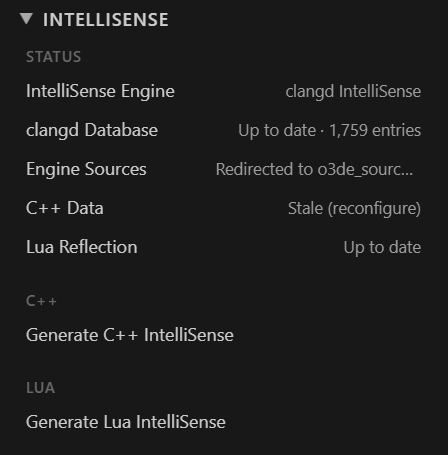
Status
- IntelliSense Engine: which C++ engine is running. C/C++ IntelliSense, clangd IntelliSense, Both running (conflict), or None running. Click to choose. Changes are workspace settings only, and switching back restores what the workspace had.
- clangd Database: shown while clangd uses O3DE’s compile database. Up to date, Update pending, or Not configured. It refreshes itself after a configure, a config switch, a workspace folder change, and at startup.
- Engine Sources: how far C++ navigation reaches into the engine. Indexed (source engine), Redirected to a source engine in your workspace, Headers only (SDK engine), or Not resolved.
- C++ Data: reads Stale (reconfigure) when
CMakeLists.txt, a*.cmakefile, orproject.jsonchanged since the last configure. - Lua Reflection: reads Stale (gems rebuilt) or Stale (different engine) when Lua completions no longer match your code.
A prebuilt SDK engine ships headers only, so Go to Definition can’t reach engine .cpp files on its own. With a source engine in your workspace, the extension redirects there. In editors that use Open VSX, where Microsoft’s C/C++ extension isn’t published, clangd switches on automatically.
Generate C++ IntelliSense builds c_cpp_properties.json from the CMake File API and registers a live provider, with engine paths resolved to your source engine.
Generate Lua IntelliSense launches the Editor headless, dumps the reflected scripting API, and generates Lua language server stubs. The first run takes a few minutes. After that, .lua scripts get typed completion and hovers for O3DE’s classes, EBuses, and globals. Re-run it after adding gems or changing the reflected API.
Redy to Build?
Get it now!
O3DE Development Tools is an unofficial, community-built extension from Genome Studios.
It isn’t affiliated with, endorsed by, or sponsored by the Open 3D Foundation or the Linux Foundation.