Lua
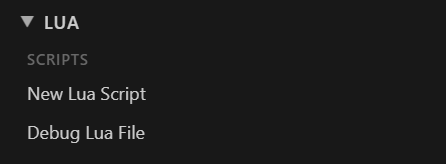
- New Lua Script opens a new, unsaved script from a template. Save it inside your project so the Asset Processor compiles it.
- Debug Lua File starts the debugger for the open script. Start your game, in Editor Game Mode or the GameLauncher, and it connects automatically.
The debugger is a native Debug Adapter for O3DE’s RemoteTools protocol, with no companion gem: breakpoints, stepping, call stack, locals, watch, and edit-value. It needs a non-Release Editor or Launcher build with the RemoteTools gem enabled, which O3DE’s standard project templates do by default. It is localhost only, one target at a time.
Run O3DE: Register VS Code as Lua Editor once and restart the Editor. After that, the Editor’s Tools ▸ Lua Editor and a Script component’s Edit button open scripts in VS Code.
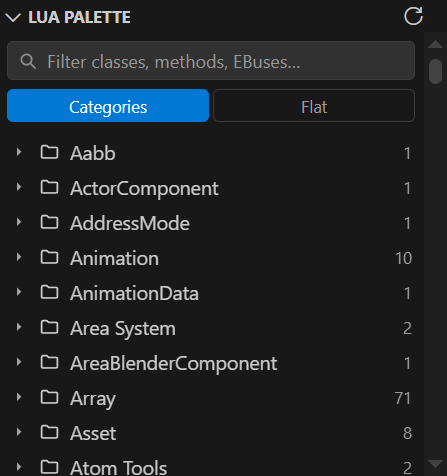
The Lua Palette view in the O3DE activity bar is a searchable browser for the engine’s reflected scripting API, the VS Code counterpart to the Lua IDE’s Class Reference panel.
- Categories groups symbols by Script Canvas category. Flat lists Classes, EBuses, and Globals.
- Filter as you type. Click a symbol to insert a call snippet at the cursor.
- It fills from Generate Lua IntelliSense, and opens beside a script when O3DE hands one over.